Draw Your Cart Controls
Drawing and fighting inputs across platforms—UI may update after patches.
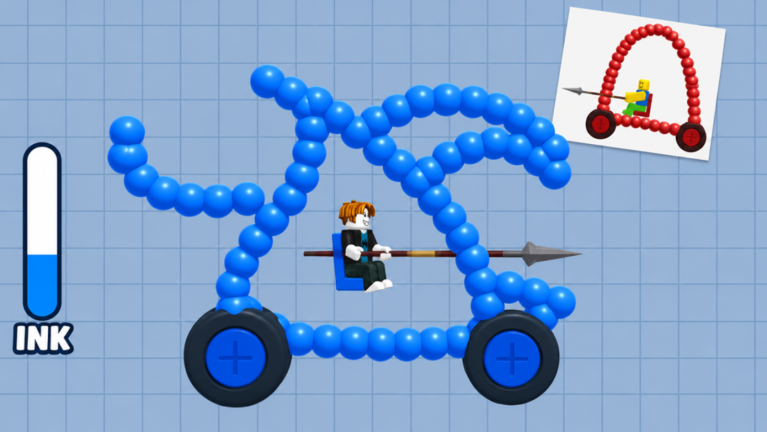
This Controls Guide covers practical inputs for Draw Your Cart! on Roblox by SendyStudios. You draw a cart with limited ink (rider, wheels, weapon), then fight by driving and swiping, knocking opponents off, breaking parts, avoiding water, taking DUEL matches, and facing a boss every ten wins. Roblox experiences refresh buttons and prompts over time, so treat on-screen labels as the source of truth if they disagree with this page after a patch. Cross-check Updates when the HUD changes.
After you learn inputs, practice a simple frame from Cart Builds, pick a weapon idea from Weapons, and run the pre-fight checklist on Tools. Beginners should also read Getting Started and the broader Players Hub.
Shared control ideas (all platforms)
Regardless of device, the loop splits into two phases:
- Draw phase — Spend ink to create structure and attachments. Confirm rider connectivity and wheels before decorating.
- Fight phase — Move the cart, aim contact, use the fight or fire control when available, and manage knockoff angles.
Look for on-screen prompts such as draw/paint tools, Fight, DUEL, upgrade shops for ink, quests, and cosmetic skin menus (hats, balls, wheels, flags). If a tutorial arrow appears, follow it once, then rebuild the same cart from memory to train muscle habits.
PC controls
PC players typically use mouse for drawing strokes and keyboard for movement during fights.
| Action | Common PC approach |
|---|---|
| Draw strokes | Mouse drag on the canvas; release to finish a segment |
| Camera / pan (if available) | Mouse move or hold bindings shown on HUD |
| Drive / steer in fight | WASD or arrow keys |
| Fight / swipe / attack | Mouse button or on-screen Fight prompt |
| Fire cannon-style tools | Fight or dedicated shoot prompt when the cart supports it |
| Open menus / upgrades | On-screen buttons; click ink upgrades before cosmetics |
| DUEL | Use the DUEL prompt when offered; confirm readiness |
PC tips: Zoom your focus mentally—draw thick enough joints even if the mouse can make hairlines. Hairline mounts look precise and then snap. Use short overlapping strokes for triangles instead of one huge shaky curve. During fights, small steering adjustments beat panic spinning near water.
Mobile controls
Phones use touch for both drawing and combat UI.
| Action | Common mobile approach |
|---|---|
| Draw | Finger drag; lift to end a stroke |
| Erase / undo (if present) | HUD undo or clear controls—use before Fight |
| Drive | On-screen stick or directional pad |
| Fight / swipe | Large Fight button; swipe gestures when prompted |
| Menus | Tap upgrade, quest, skin, and DUEL buttons |
Mobile tips: Rest the device so your drawing hand is stable. Prefer thicker spears and triangles from the Tier List Hub philosophy. Avoid tiny dual cannons until ink upgrades expand your budget. Keep thumbs clear of the Fight button while finishing wheels so you do not enter combat early by accident.
Tablet controls
Tablets behave like large phones with more canvas.
- Use the extra space to keep wheels and rider visually separated while drawing.
- Still favor touch-friendly thickness; tablet precision is better than phones but worse than a mouse for micro braces.
- Place the device flat or at a slight angle to reduce stroke wobble.
- When dueling, hold the tablet firmly—one-handed fight steering is a common cause of edge deaths.
Console controls
Console players rely on the gamepad and Roblox on-screen hints.
| Action | Common console approach |
|---|---|
| Draw aim | Right stick to move cursor; hold a face button to stroke (follow HUD) |
| Confirm / Fight | Primary face button as labeled |
| Drive | Left stick |
| Menus | View/menu buttons plus on-screen cursor if required |
| DUEL | Highlight DUEL prompt and confirm |
Console tips: Drawing with a stick is slower—commit to simple S-tier frames you can reproduce. Practice a single spear mount location so you are not hunting for angles under lobby pressure. If aim-assist style softening exists in the UI, still build wide hit corridors (forked blades or thicker tips) for forgiveness.
Fight-phase habits that feel like “advanced controls”
Even with perfect bindings, fight skill is timing:
- Approach at an angle so your spear or ram meets their weak side.
- Tap Fight/swipe when contact is imminent, not from across the map.
- Disengage to water-safe space if your wheels are damaged.
- Re-center after a knock attempt before committing again.
- Save panic spins—oversteer flips braced carts as often as it saves them.
If your cart has a cannon-style attachment, create space, fire when the prompt is active, then close in with the physical frame. Do not stand still as a pure turret unless the arena punishes movement less than contact.
DUEL-specific control checklist
- Confirm you finished drawing before accepting.
- Recenter camera or stick neutral before the countdown ends.
- Decide your first steer direction in advance (left pocket vs right pocket).
- Use one primary attack plan—spear poke or ram—not four half inputs.
- After a loss, note whether input lag, bad steering, or bad design caused it. Only redesign if structure failed; otherwise drill the same cart.
Accessibility and comfort
- Increase device brightness so ink lines are visible.
- On mobile, enable any Roblox performance mode that keeps touch responsive.
- Take short breaks—stroke quality drops when hands fatigue, which wastes ink.
- If you share an account across PC and phone, expect to redraw thicker on phone even if the PC version was needle-thin.
When controls “break” after an update
UI reshuffles happen. If Fight moved or draw tools renamed:
- Re-enter the tutorial or look for new HUD highlights.
- Check Updates and community notes via Links.
- Re-run a private practice fight before a boss milestone.
- Update your personal checklist on Tools with the new button names.
Controls mastery is less about memorizing every Roblox glyph and more about reliable draw-to-fight rhythm. Once your hands can produce a triangle-and-spear without thinking, the Players Hub etiquette and tier-list strategy start to matter more than the buttons themselves.
Frequently Asked Questions
Quick answers for Draw Your Cart players.
What are the exact keybinds?
Follow the in-game HUD for your platform. This guide lists common Roblox patterns for draw, drive, Fight, and DUEL. Patches can rename or move prompts.
Why is drawing harder on console?
Stick-based cursors are less precise than a mouse. Use thicker triangles and simpler weapons, and practice one repeatable silhouette.
How do I fight after drawing?
Enter the fight phase with the on-screen Fight control, steer into contact, and use swipe or fire prompts when they appear for your weapon type.
Can I play on all platforms?
Yes. Draw Your Cart is built for Roblox on PC, mobile, console, and tablet. Adapt cart thickness and weapon complexity to your input precision.